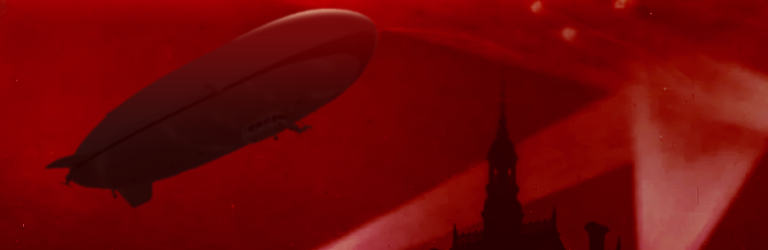
Have you ever wanted to make somewhat cheesy, somewhat bitcrushed technicolor environments like Homestuck‘s Prospit and Derse? Well, you don’t need Photoshop. You can use outdated versions of Clip Studio Paint, and probably other programs too!
Why am I posting this on Halloween? Uh, that’s just how things shook out. But also, conveniently, the image is kind of a little Halloweeny. Its base is this public domain photograph titled “Visite des Zeppelins,” capturing a zeppelin flying above a gothic-looking building in 1915:
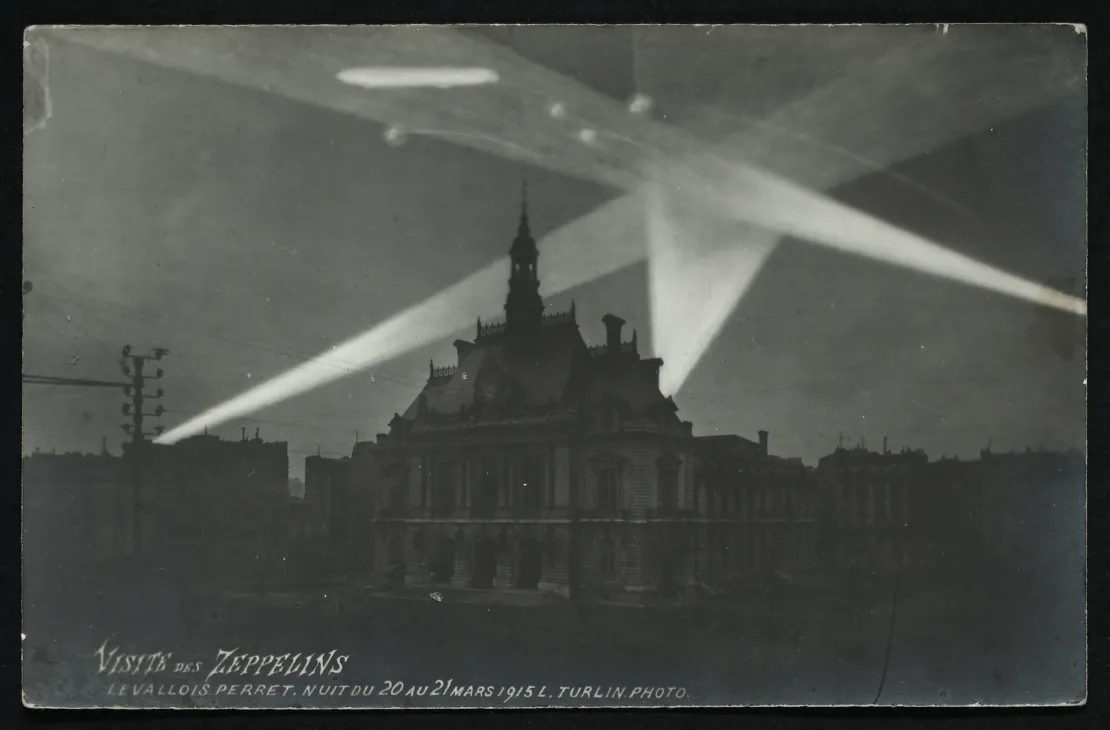
I believe that oblong shape near the top is one of the zeppelins. Then again, certain streaks might also be parts of zeppelins. I proceeded to ignore all that and do the cheesiest thing possible: add in a crisp, clear, modern photograph of a zeppelin that’s flying much closer to the ground than should ever be permitted. We’ll get to that soon.
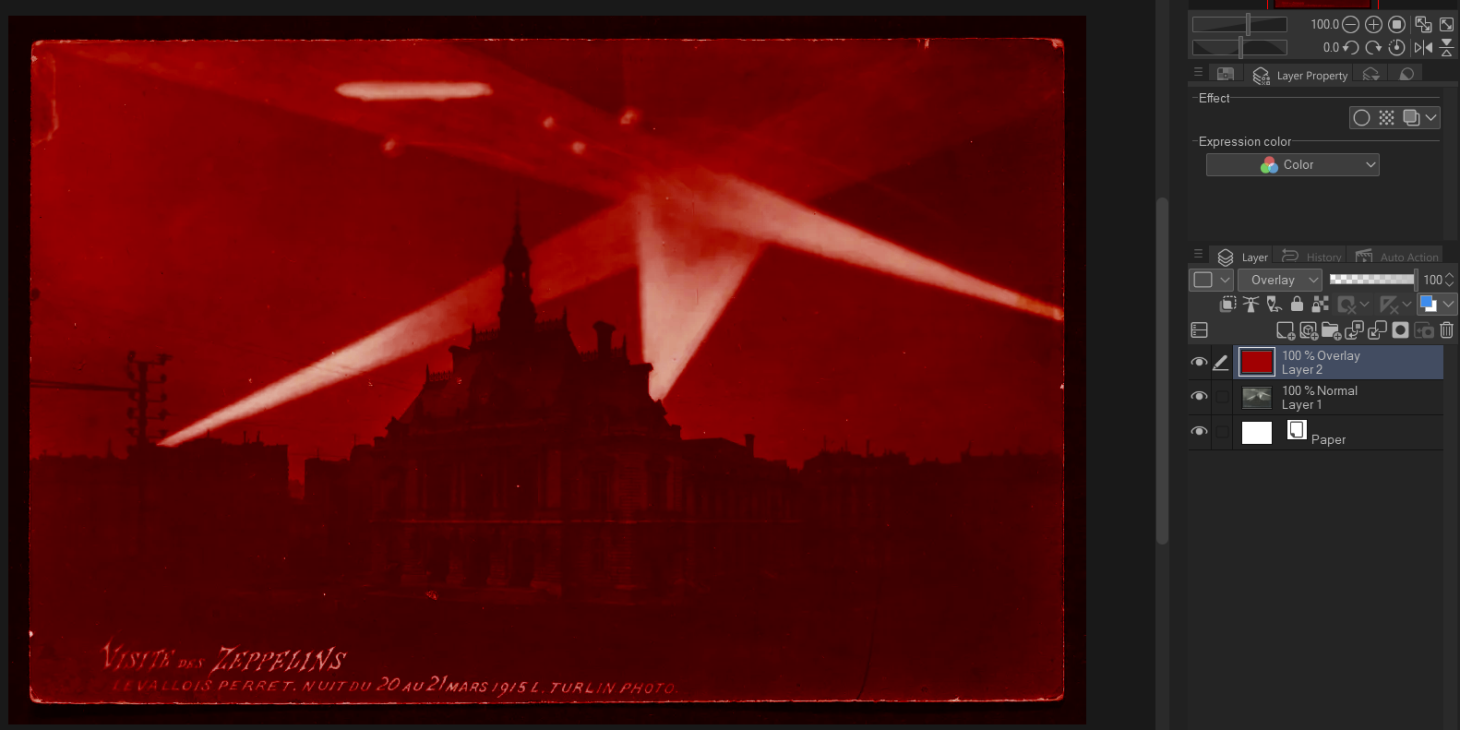
Step One: If you take this photo, make a new layer, use the Paint Bucket to fill it with a flat color, and set that flat-color layer to Overlay, you get this.
Here’s the same picture with two more layers: a darker red gradient on the bottom half + a white gradient over maybe the top tenth of the image.
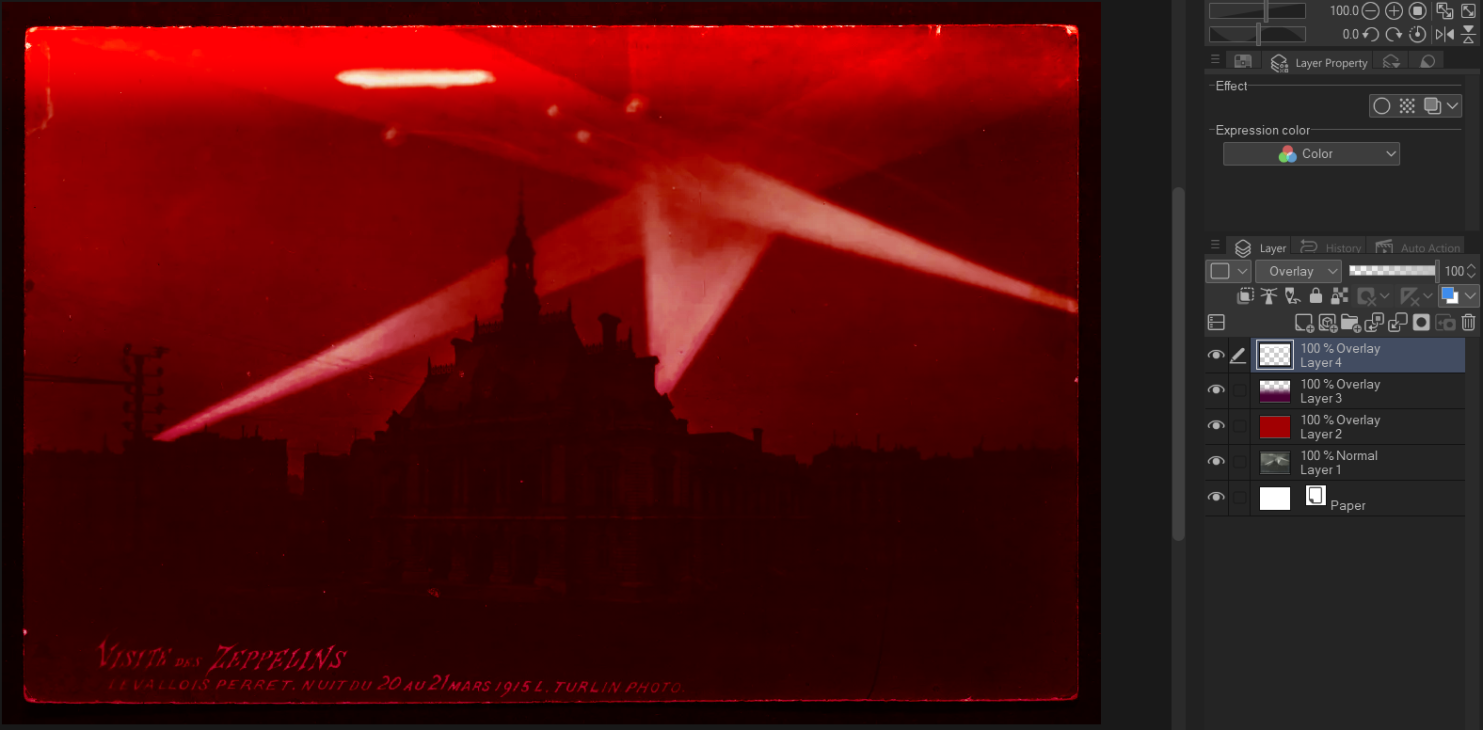
You can use tools in the Blend area (highlighted in blue in the image below) to the left of the screen to hide things like words easily. These include Blend, Blur, and Fingertip. Airbrush tools can also work.
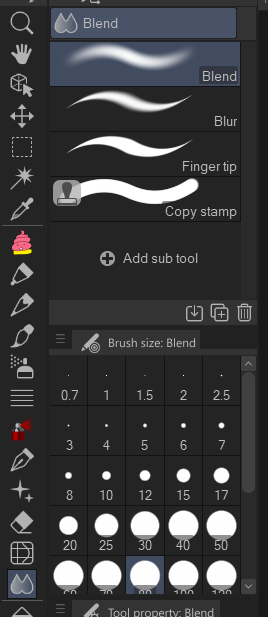
My style is often “quick and dirty,” especially for a picture like this, so I don’t know much about the nuanced differences between the tools. All I know is that Blend tools tend to push color around, while Airbrush is just a regular Pen tool, but easy to make translucent, and also really, really, really blurry around the edges.
Your initial results might look janky, but you can go back and add more visual noise to the blurred spot afterward by applying Airbrush and Blend again. Also, if you want your work to be very Homestuck-like, these kinds of tiny details will usually disappear later on in the process anyway.
You can probably see the obvious bright spot where I blurred out the words in the bottom-left corner of the picture below. If not, up the contrast and a rectangle-y shape shall appear:
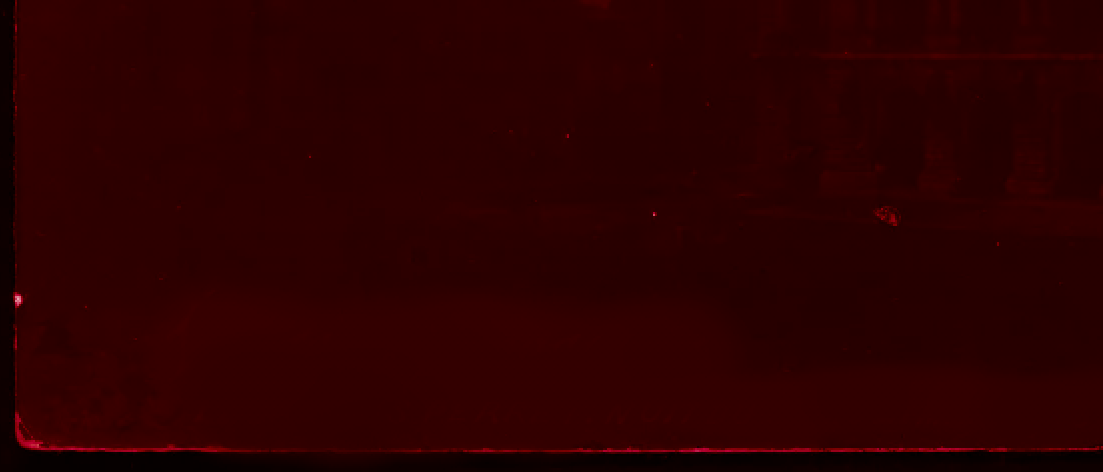
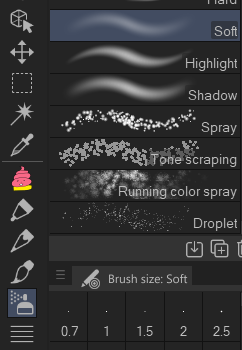
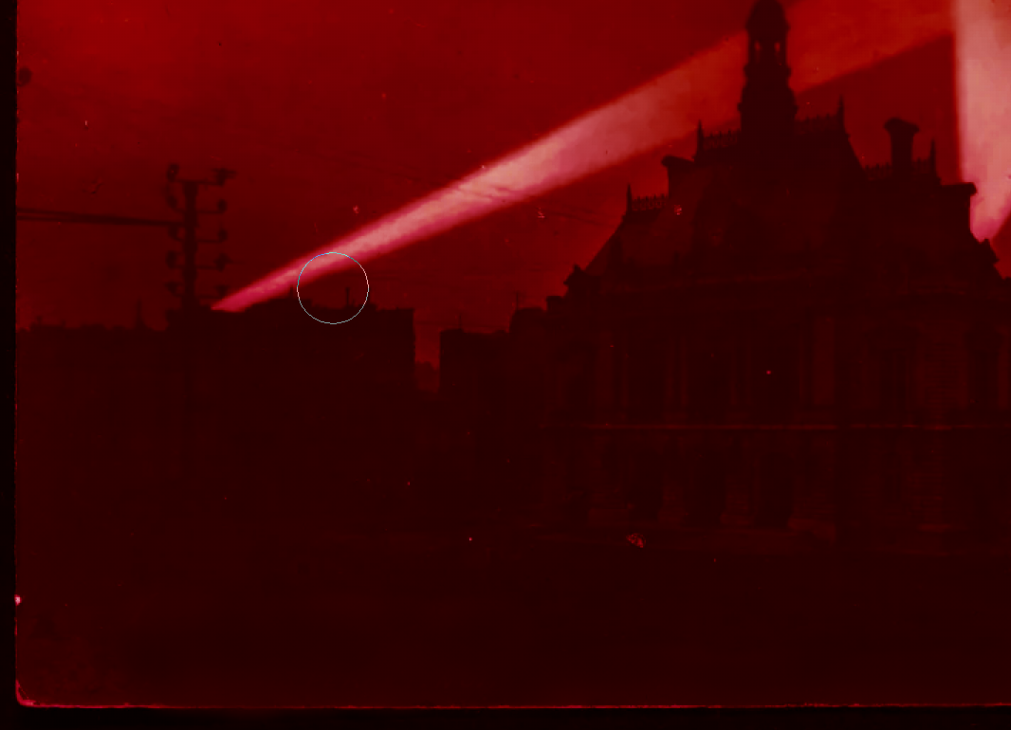
To hide the spot a little better, I used the Eyedropper tool to pick a darker shade of red, then used the Soft Airbrush tool and wriggled it around to hide the bright spot. I used a finger and trackpad to do this; again, high accuracy (and dexterity) is not always required.
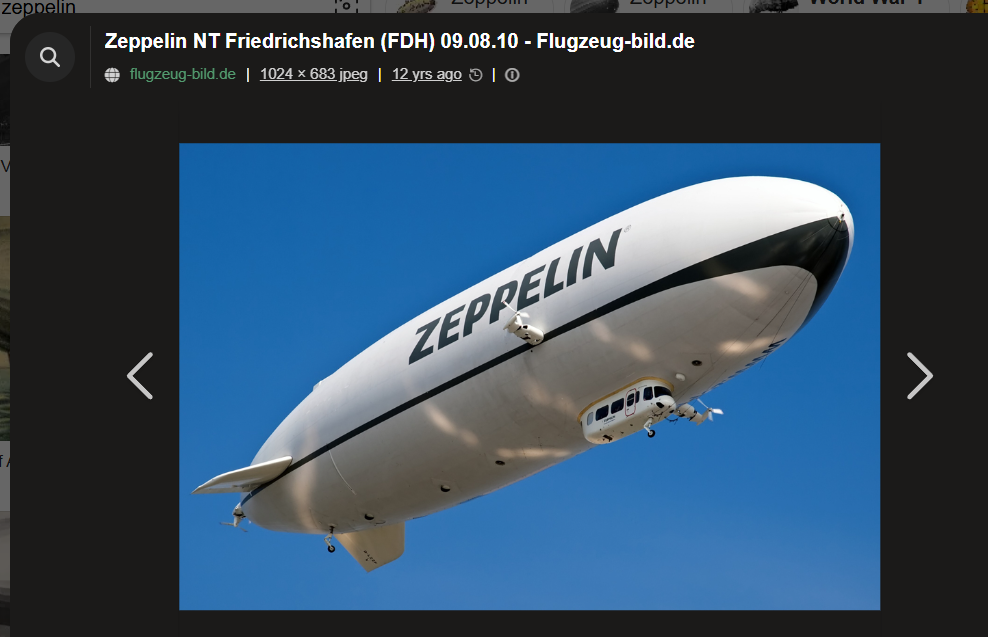
Let’s put this random non-public-domain modern zeppelin in!
My first step was to use the Magic Wand tool to try and select all of the sky background so I can delete it. When you use Magic Wand, the Tolerance slider (see bottom left) is very important. The higher the tolerance, the broader the swath of colors Magic Wand will select.
But in this case, it was either picking up too many colors or too few.
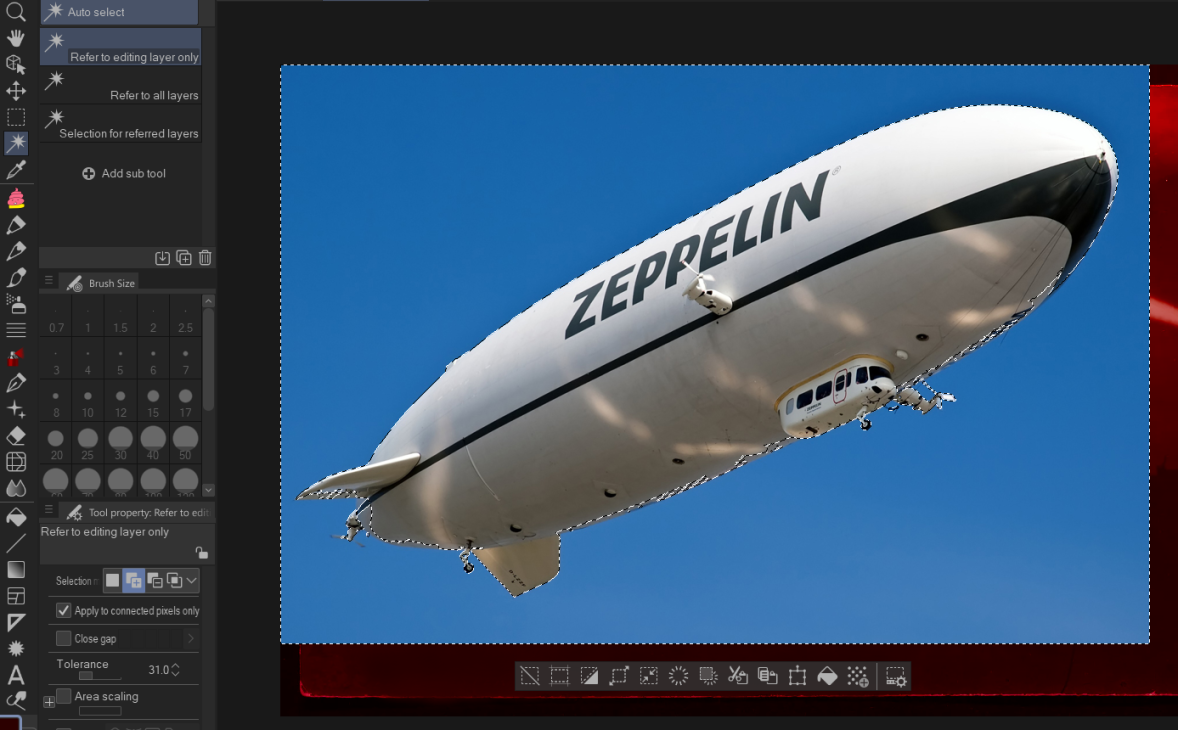
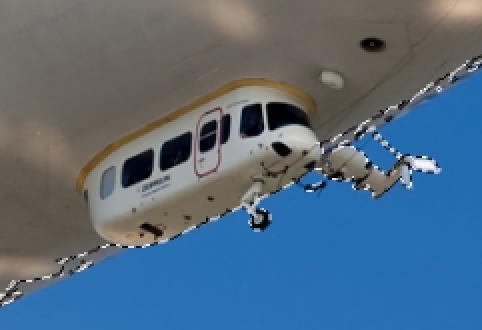
This selection is actually close to good, but I don’t like how some parts of the back and underside aren’t together with the zeppelin. To get a better selection, I need to try something else.
Because I don’t need the zeppelin to be detailed, at all, I’m going to blow out the contrast until it becomes easy to select the background and nothing but. You can also use Posterization to do this.
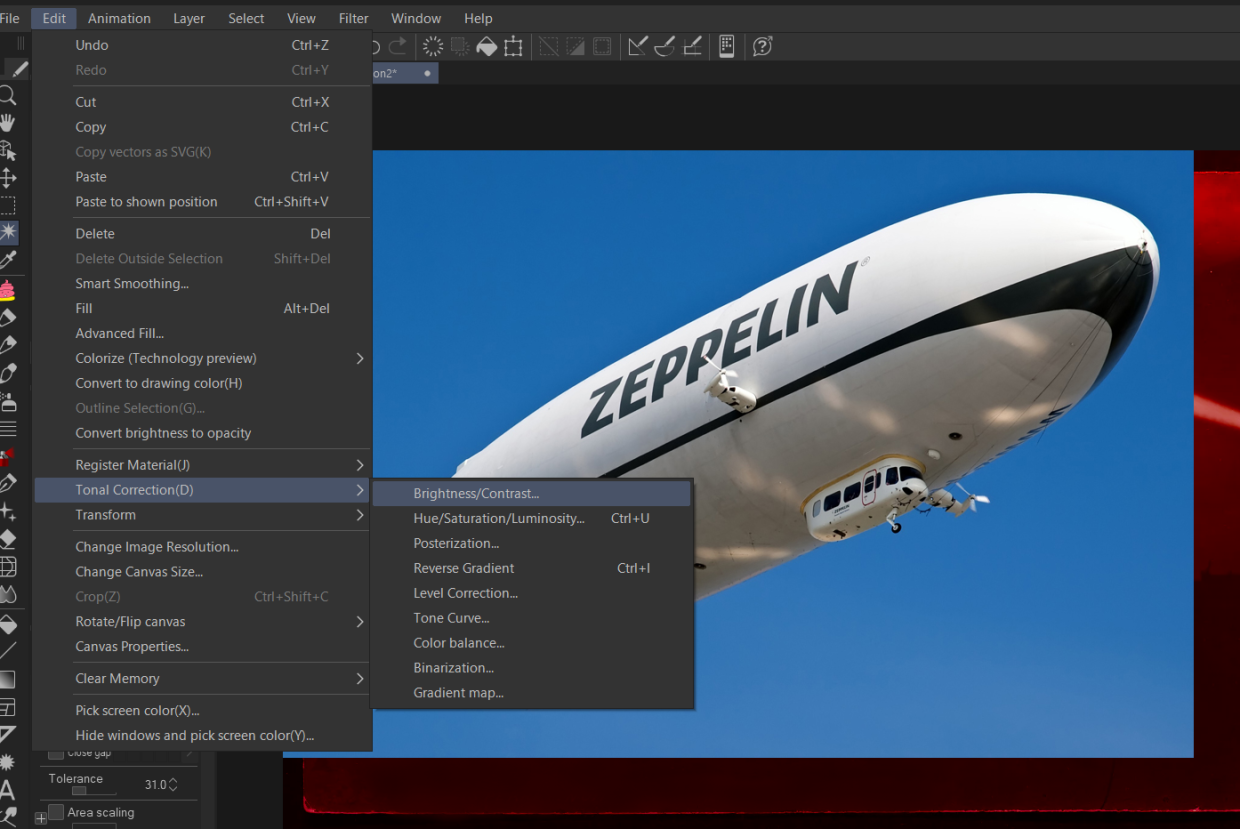
Upping the contrast alone made parts of it very dark, which seemed like it was actually blending the blimp in MORE with the sky, so I went back to the Brightness/Contrast sliders, and this time, I also raised the brightness. Hope it’ll work.
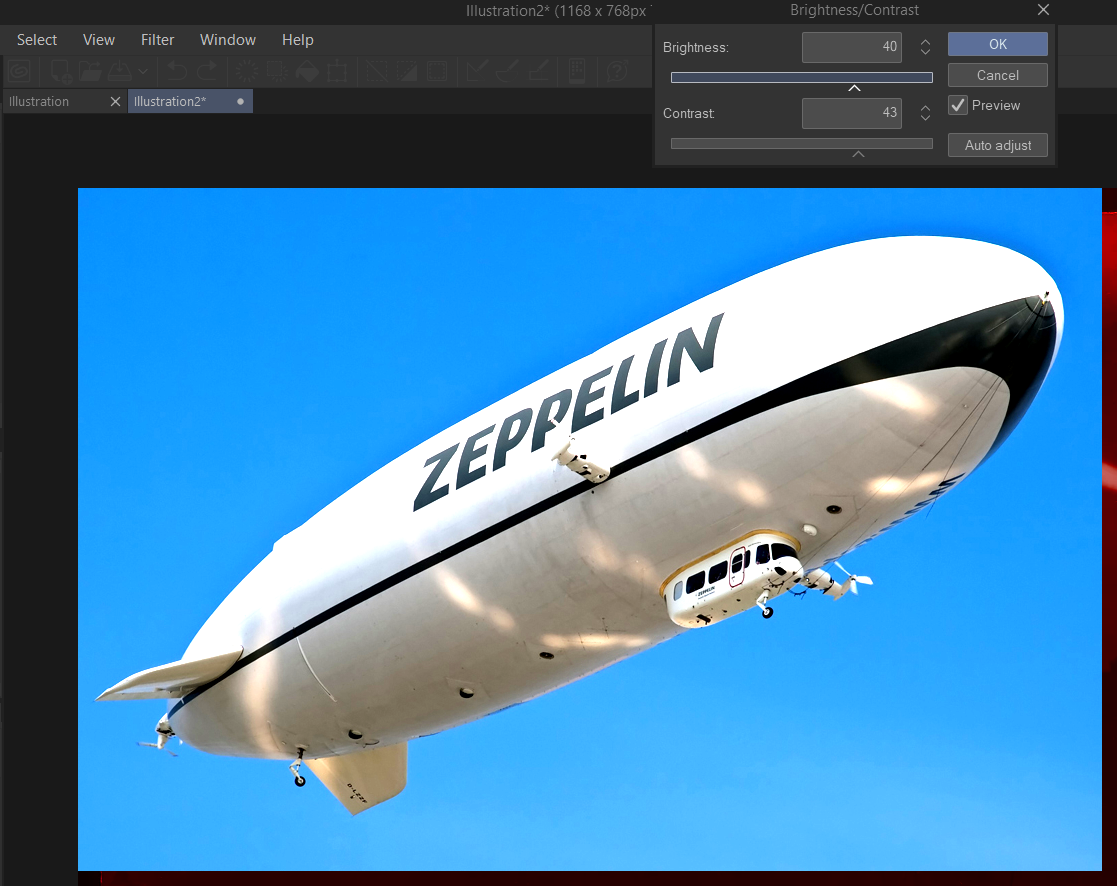
Now the Magic Wand tool is selecting ALMOST everything I want; there’s a spot in the lower-right corner that’s too bright to be selected. This is good enough.
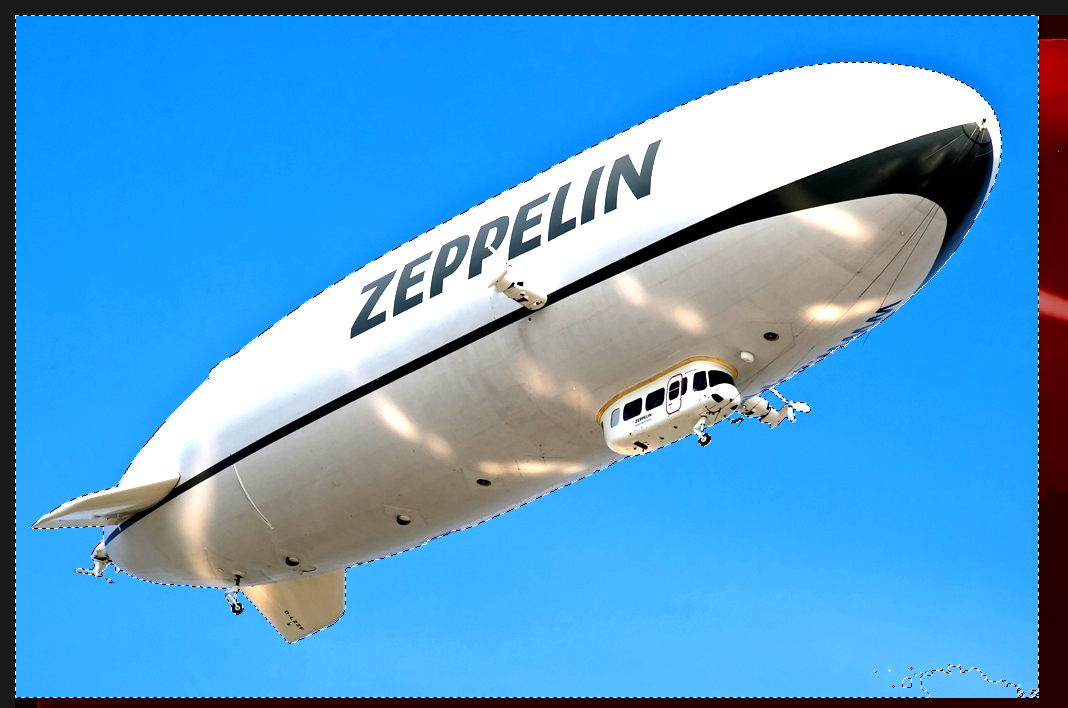
I deleted 97% of the background by hitting Delete with the above sky portions selected. Then I still needed to erase that pesky bottom-right portion of sky.
There is an Eraser tool in Clip Studio Paint, but I’ve never, ever used it. To erase stuff, often it’s preferable to use any ordinary drawing tool (like a Pen, Marker, or Airbrush) and selecting the transparent drawing color. You can see the drawing colors in the bottom-left corner of the screen here
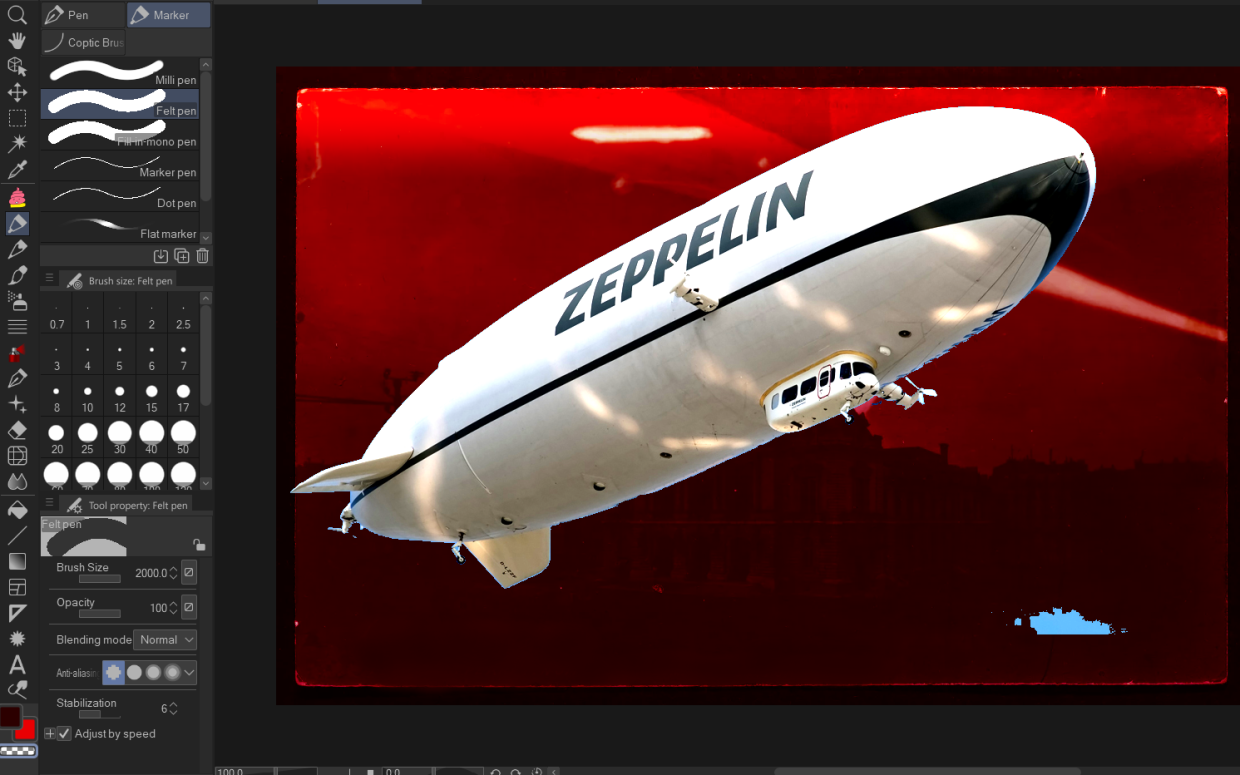
Why would you want to use a non-Eraser eraser to erase things? There’s lots of use cases. If you’re doing pixel art, you might want to use a pixel-perfect brush. I often use brushes that look like paint or gel pens, which I prefer to erase this way because the results tend not to look out-of-place. I dunno what kind of artifacting a “kneaded eraser” or “rough eraser” will or will not leave behind—but I already know how my gel pen works.
And beyond that, there are other fun things you can do with the transparent color. For instance, try it on the Figure tool! Make an ellipse and instantly cut out an oval hole in something. OR cut lines out AROUND a shape, which can sometimes be far more effective than a Magic Wand tool. But I guess I’m getting off-topic.
Back to our image. Step Whatever: some of the floating blue pixels are easy to delete, others you might have to find by zooming in like this.
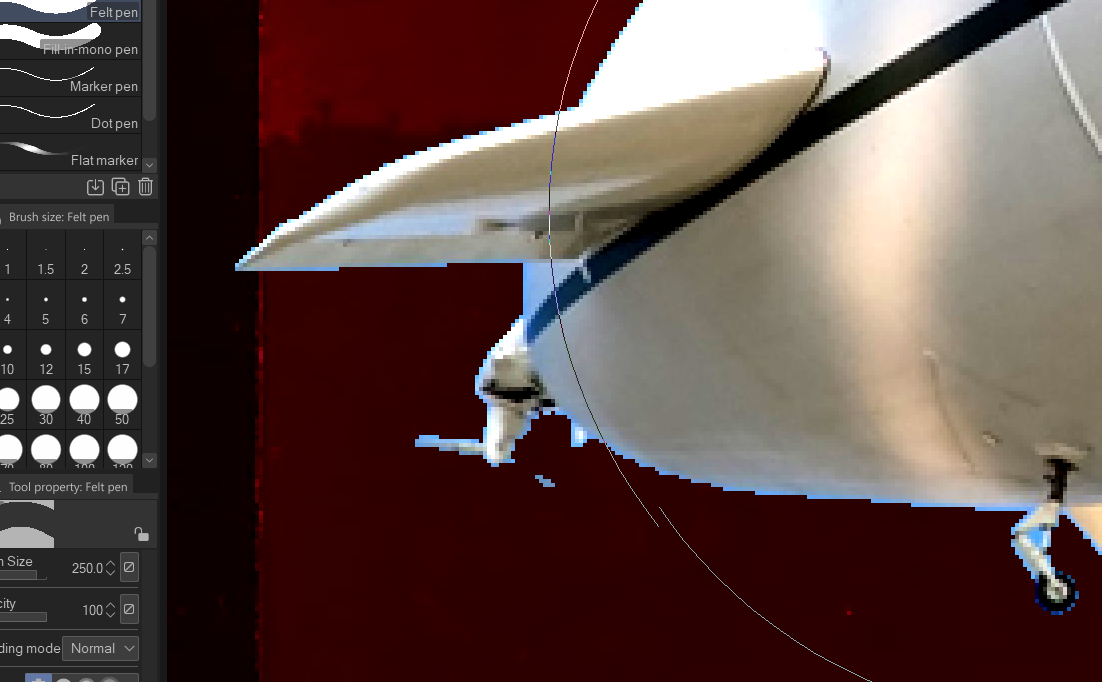
You might also notice that the back propeller of the zeppelin was deleted by the Magic Wand earlier. I didn’t know it when it happened. I wish I had it back. But you know what? We’re working quick and dirty. We can literally doodle it back in (again with a finger and trackpad).
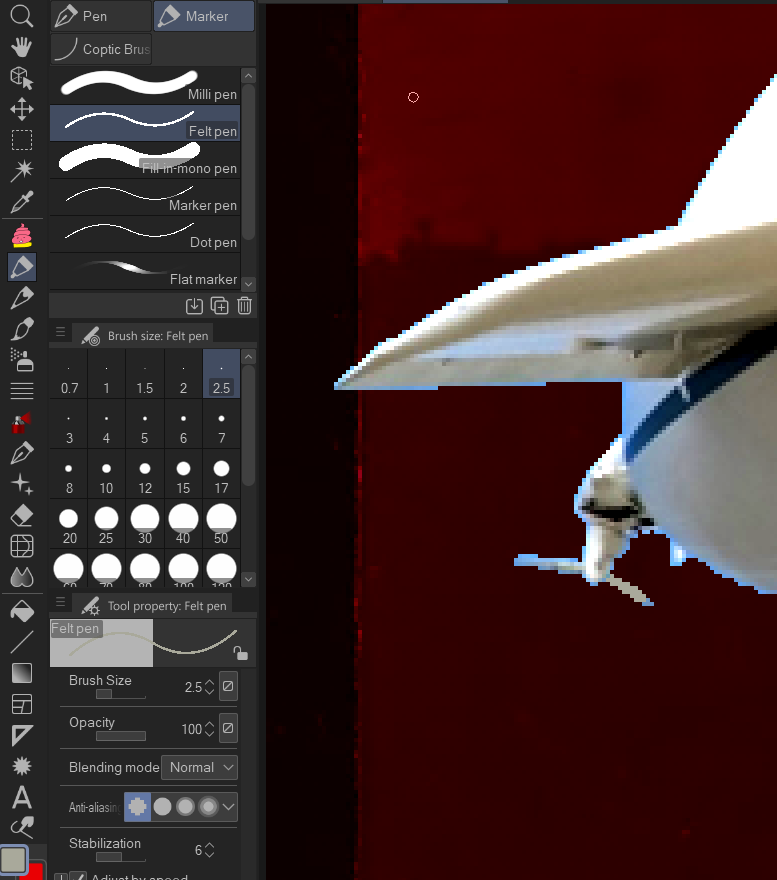
I have a Felt Pen tool with anti-aliasing set to none (see bottom left in the next image) which I used to draw in the propeller again.
Oh, and “anti-aliasing” is the amount of blur on the edges of your brush. If you draw a black line and all the pixels are 100% black, not gray, not transparent, that’s a brush with zero anti-aliasing. But if the edges are very blurred, you have strong anti-aliasing.
And for that crispy crunchy look, we typically want zero anti-aliasing.
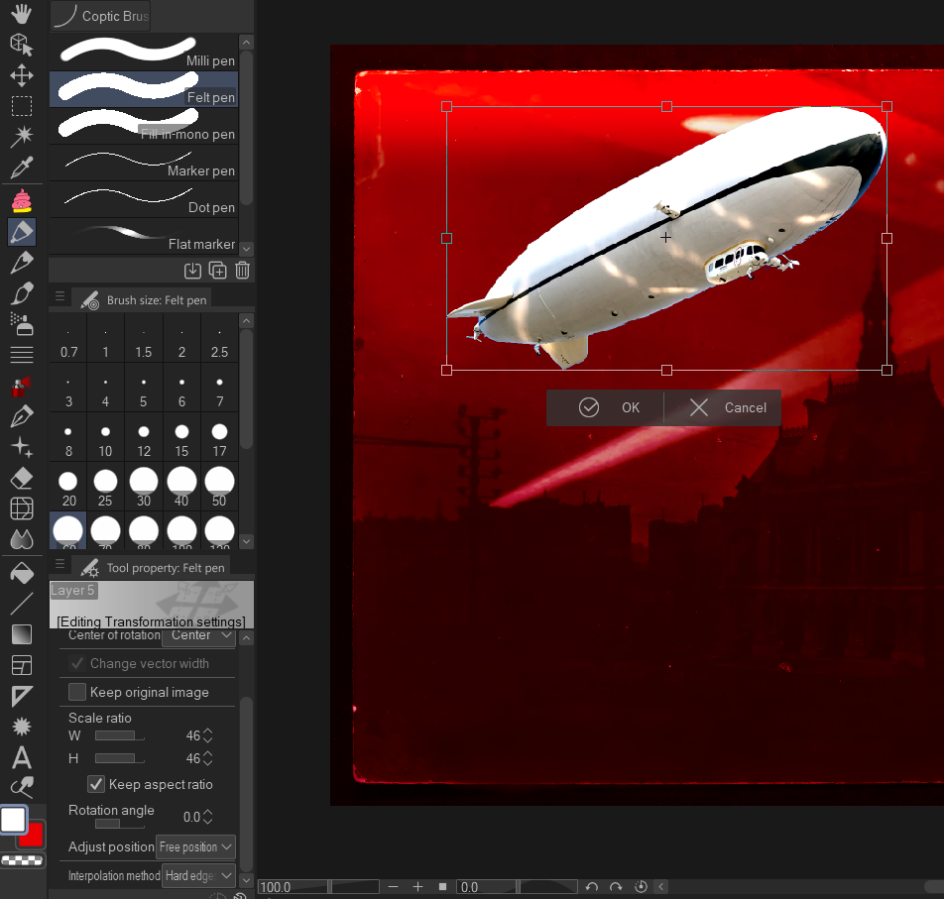
Press Ctrl + T to transform an object: you can make it bigger or smaller, rotate it, and there are a few other fun but more niche transformation options too. Ex. you can screw with perspective like this is the Star Wars opening credits crawl.
Also, using the Interpolation Method options in this Transform menu, you can give the transformed object smooth, anti-aliased edges (not pixelated) or hard, pixely, non-anti-aliased edges (like Prospit/Derse/SBAHJ objects). The setting for the latter is called “Hard edges (nearest neighbor)” in Clip Studio Paint; if you’re using something else, that program might use only one name or the other.
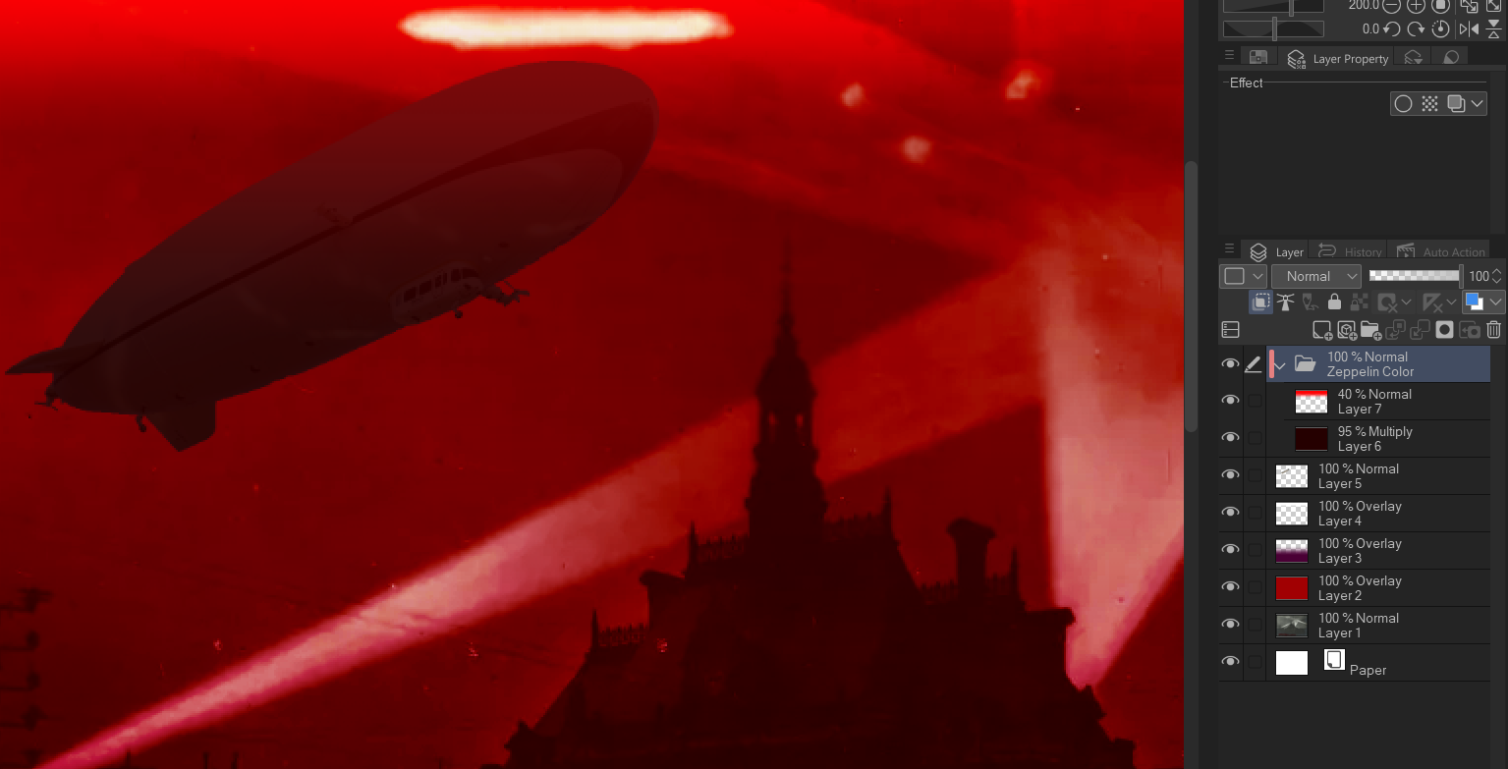
Several things have happened between the previous image and the next, all in the pane on the right:
- I made a new layer folder by clicking on the icon with a folder and a “+” sign.
- I selected the folder, then pressed “Clip to Layer Below” (the icon with two overlapping squares). This means everything in the folder will only affect that one layer. In this case, it only affects the zeppelin.
- In the folder, I made a dark red layer and a small, lighter red gradient. You can see by reading the data on each layer that I changed both their transparency and their blending mode to get the results I wanted.
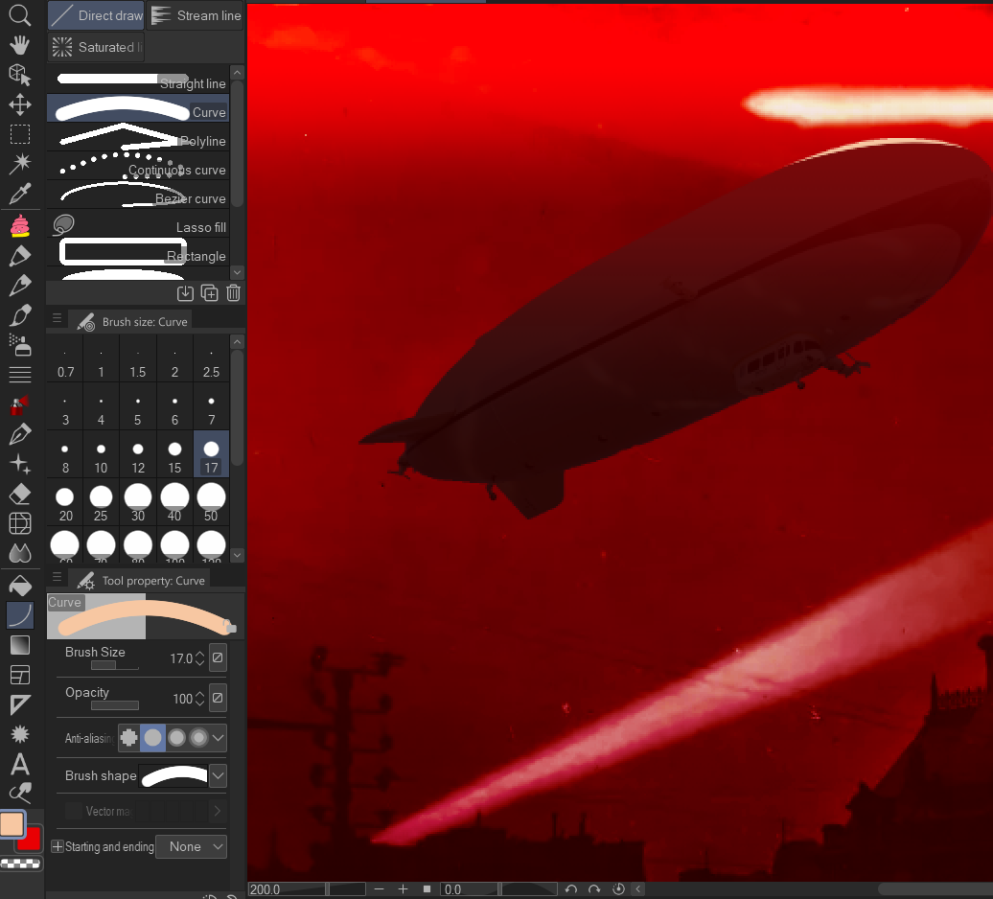
Something else I thought would be cool is a highlight on the zeppelin. First I used the Figure tool on the left, which lets you make straight lines, curved lines, polygons, talk balloons, those manga effect lines, and probably some other things I never really use. I selected “Curved Line,” then created a line in the folder. It took a few tries before the shape was where I wanted. From there, I clicked on the layer and again chose “Clip to Layer Below” so that it only affected the zeppelin.
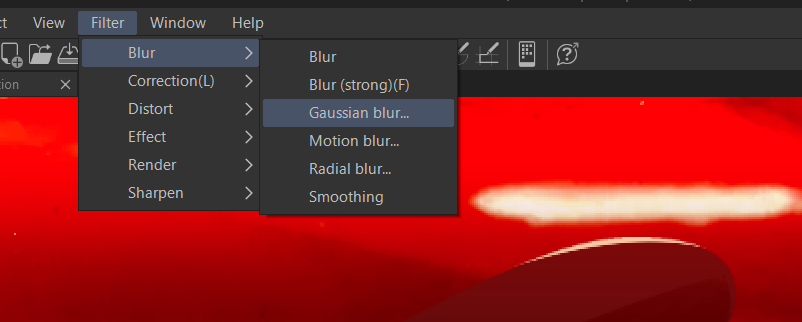
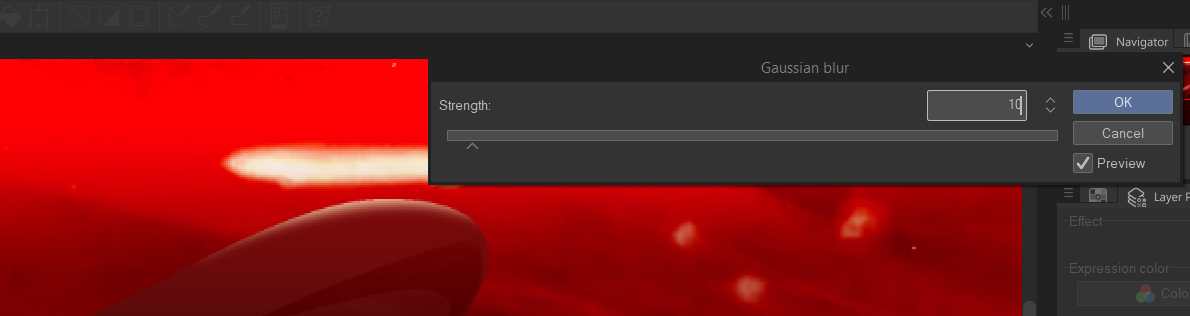
Then I wanted it to be blurrier so the transition’s not as harsh, so I activated Gaussian Blur. (I didn’t use regular Blur because in Clip Studio Paint, Blur gives you no sliders to mess with. In other words, you can only Blur things one way. Can’t make more blur. Can’t make less blur. It sucks and I don’t know why it was made that way.)
Now, at long last, I’ve put all the zeppelin stuff in one folder so it’s easier for me to move the zeppelin AND all its clippy layers around at the same time.
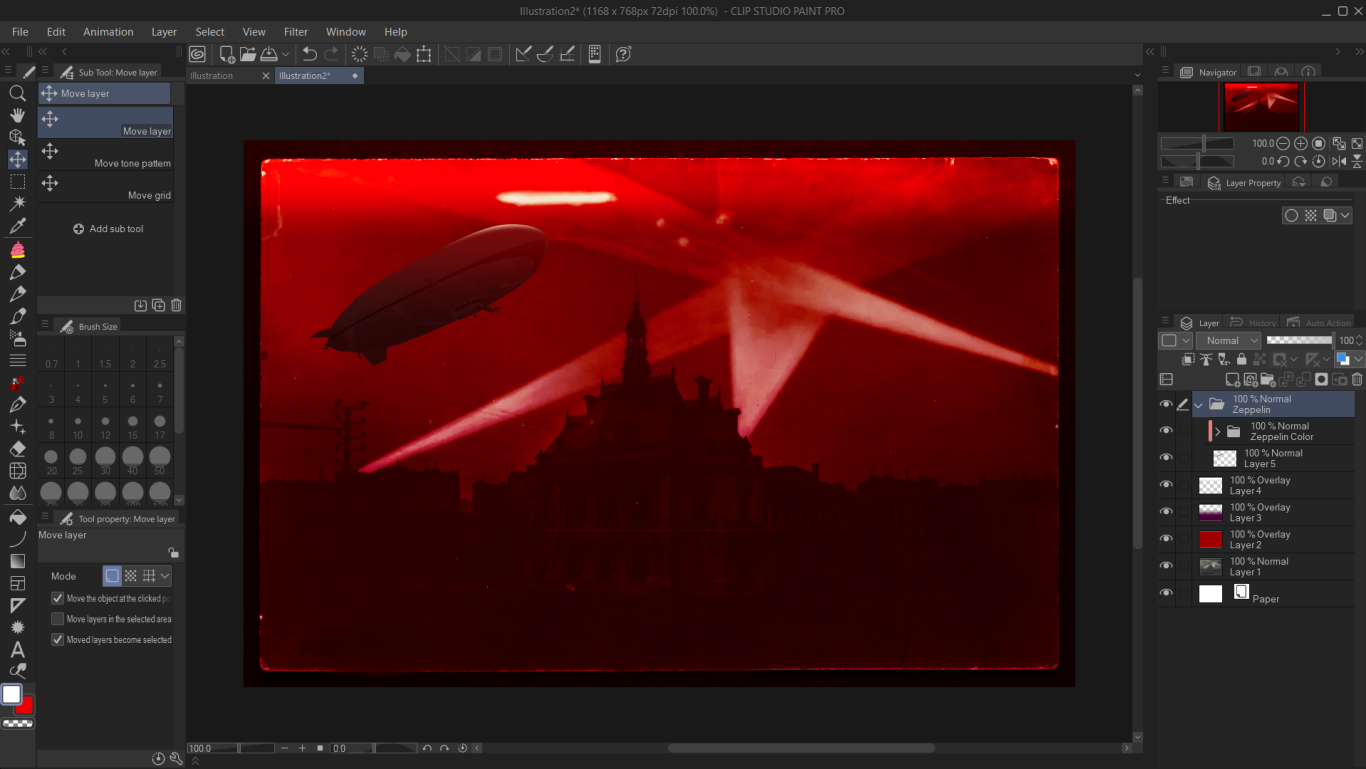
Actually, it may be a good idea to blur the zeppelin some so it fits in better with the original photo. Even though crispy crunchiness was important for the earlier steps—it flattened out colors, and flat colors is what we want—I personally don’t want the FINAL result to be crispy and crunchy like anti-anti-aliased Prospit and Derse. Still, I’ll show you how to do that soon, so hang tight.
Anyway, here’s a blurred blimp:
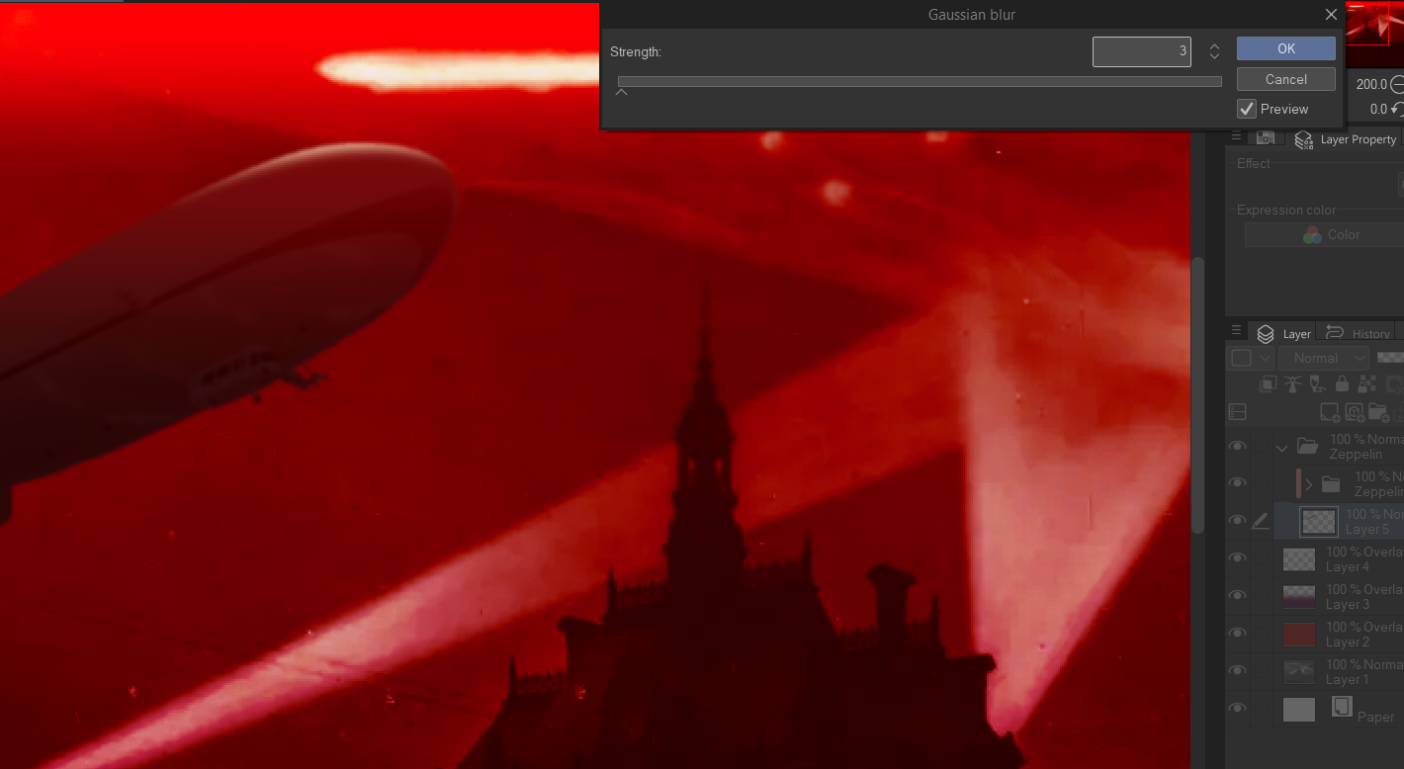
Remember that whatever you do to an image in Clip Studio Paint, it’s hard to take it back. You can press Ctrl + Z a lot of times, but if you save that project, you don’t get to do that. So I make copies of layers that I think I might want to undo certain big steps on. If I think I might want the crunchy blimp back, I’ll duplicate the layer before I use Gaussian Blur.
Also, saving multiple documents that all contain the same project, each with a different version number, might be useful to you, especially on a bigger project.
After some more touch-ups I have…a fairly Hussified picture!
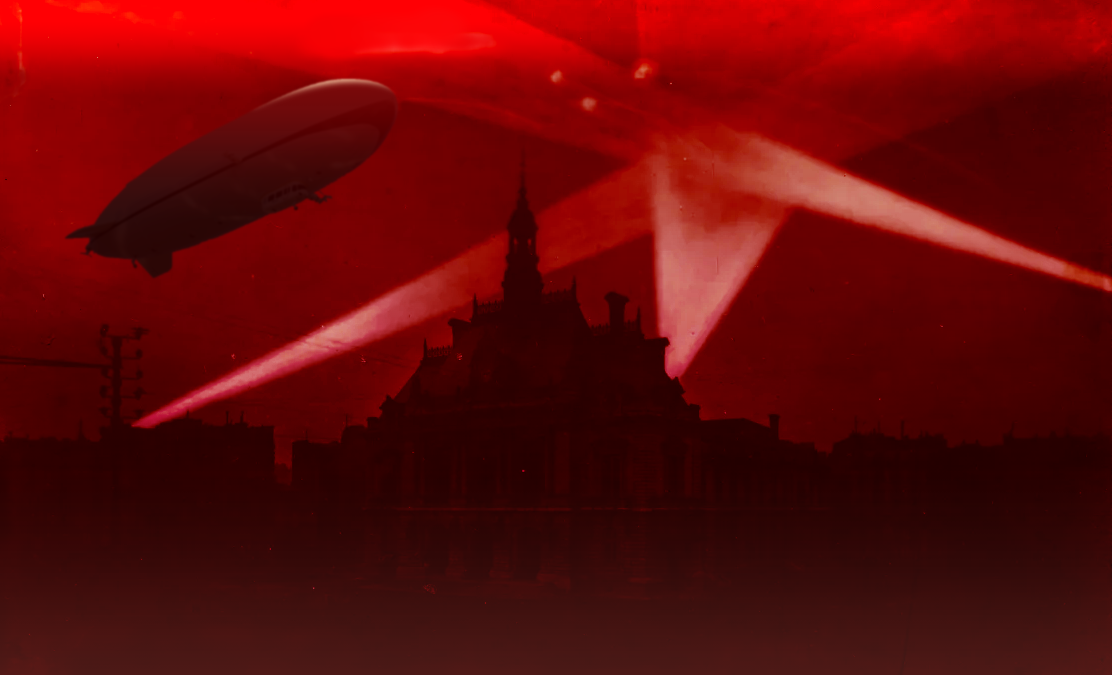
I cropped out the literal rough edges of the original photograph, used an Airbrush to erase various splotches and shapes, and added a light gradient to the bottom edge.
If I were really dedicated to making this image Truly Nice, I would also change the color of the zeppelin highlight (it makes less sense now) and also try to blur the faint arcing shapes that may or may not belong to real blimps on the right side there. But I’m decently satisfied with this, given that it’s for a tutorial.
If you want your picture to look truly bitcrushed, what you want to do is posterize. If you don’t have that in your program of choice, you can make do with brightness and contrast: crank up the contrast, tweaking brightness up or down, whatever makes it work best for your image.
If you posterize, simply take that slider down as low as you dare.
The best results will sometimes require both. Below, I started by tweaking brightness and contrast.
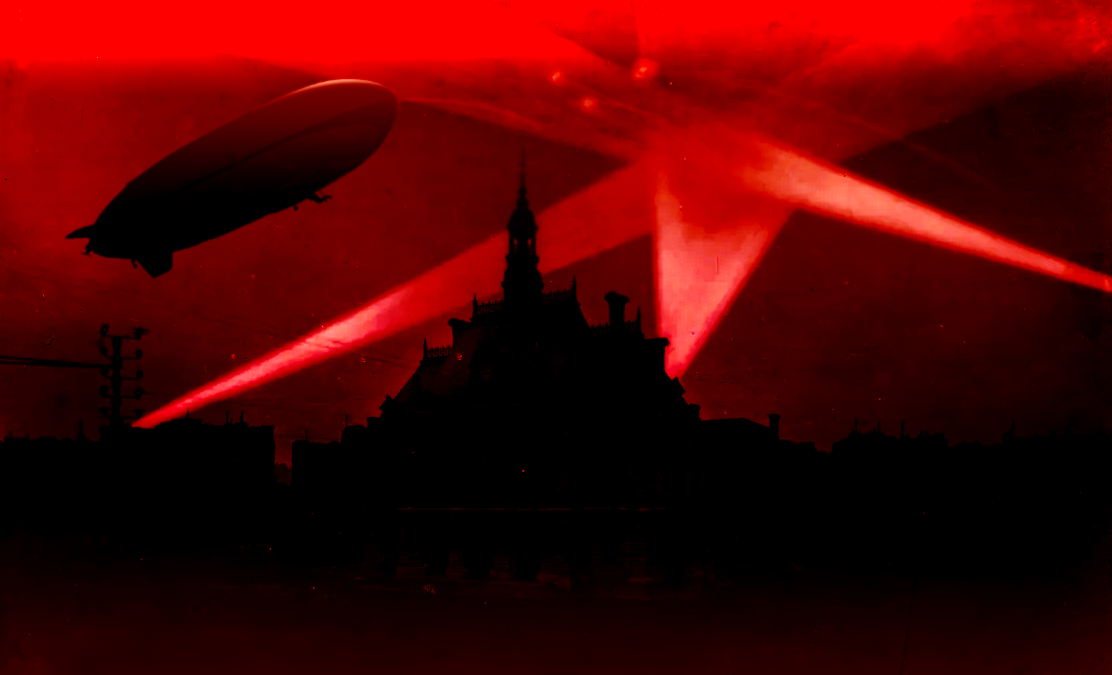
Then I posterized down to four levels:
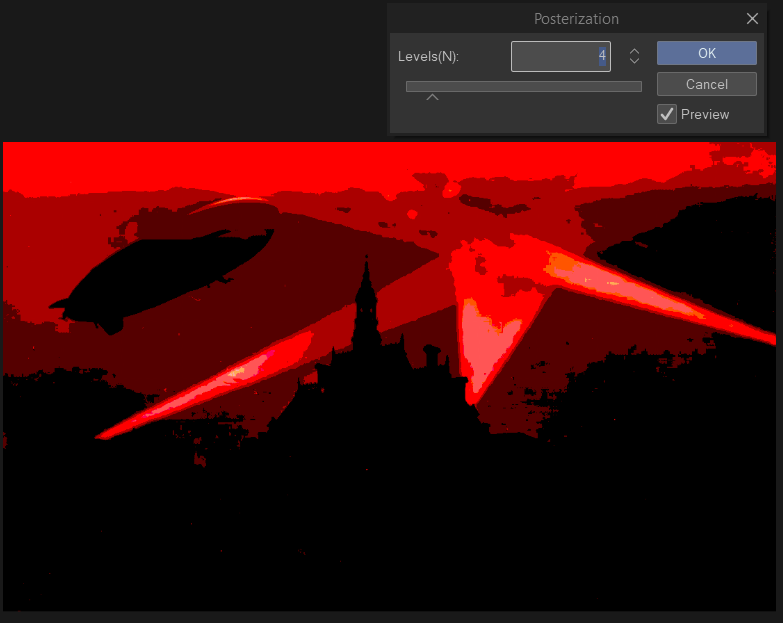
We could do a lot better than this if we really tried. Making the sky a brighter color would help, I think. We could get that with higher contrast in the Brightness/Contrast step, but we might even be able to get away with just using a Paint Bucket tool on the sky color, filling it with a brighter red. And the skylights could definitely be brighter too, or a different hue altogether.
But now you have the keys to the kingdom. You have the tools you need to make creepy ripoff Prospits and Derses of your very own. Have fun. And don’t abuse your incredible power.
Thank you for reading, and Patrons, thank you for Patreonning.
For another little tutorial, learn about how to draw even if you can’t draw…with the power of stylization! Or go off the deep end and learn about a bizarre Christmas film, since every time it’s Halloween it’s actually Christmas according to 9 out of 10 marketing experts.